
Reader-Supported: When you buy through links on our site, we may earn an affiliate commission. This supports our research and editorial independence at no extra cost to you.
When I first started building my own work setup, I made the same mistake most people do: I focused more on looks than on long-term comfort at first.
After reviewing hundreds of real user experiences and testing multiple desk configurations myself, I realized one simple truth: a good desktop setup is not about aesthetics. It is about removing friction between you and your work.
At Riajul Tech, I do not rely on marketing claims alone. Every recommendation in this guide is based on verified user feedback, long-hour usability, and practical research from real-world setups used for work, trading, and content creation.
This guide is not written to impress you. It is written to help you avoid expensive mistakes and build a setup that actually improves your daily focus.
Quick Summary: Top Setup Essentials (2026)
If you are in a hurry, here are the top-rated components to build the most efficient desk setup right now.
| Category | Recommended Model | Rating | Best For | Key Feature |
| Best Overall Chair | Branch Ergonomic Chair | ⭐⭐⭐⭐⭐ | All-Day Comfort | 8-Point Adjustment |
| Best Monitor | Dell UltraSharp U2723QE | ⭐⭐⭐⭐⭐ | Productivity & Mac | IPS Black Technology |
| Best Standing Desk | FlexiSpot E7 Pro | ⭐⭐⭐⭐⭐ | Heavy Setups | Stable C-Frame |
| Best Keyboard | Logitech MX Keys S | ⭐⭐⭐⭐⭐ | Typing/Coding | Smart Illumination |
| Best for Streaming | Logitech Brio 500 series | ⭐⭐⭐⭐ | Video Calls | Auto Light Correction |
How We Selected These Setups (Research Methodology)
At Riajul Tech, transparency matters. We do not believe in guessing. Here is the exact process used to select and evaluate the products in this guide:
Analyzed User Sentiment: We reviewed feedback from real users to understand which desktop setup configurations people actually love for gaming and work.
Ergonomic Standards: We prioritized furniture that meets health standards to reduce back and neck pain.
- Scenario Testing: A desktop setup for trading requires different tools than a desktop setup in a living room. We selected products based on specific use cases rather than a “one size fits all” approach.
- No Brand Bias: We skipped “sponsored” hype. If a popular product had recurring quality control issues in user reviews, we excluded it.
1. The Throne: Best Ergonomic Chair
Product: Branch Ergonomic Chair Status: Highly Recommended | Ideal For: 8–10 Hour Workdays

The Scenario: It is 2:00 PM. You are deep in a project, but you keep shifting in your seat. Your lower back feels tight, and your shoulders are tense. You try to focus, but the discomfort pulls your attention away every few minutes.
Most people ignore their chairs until they are in pain. They buy a “gaming chair” because it looks cool, only to realize six months later that the racing-style bucket seat forces their shoulders forward. This destroys posture.
The Deep Dive (Why It Wins) We analyzed over a dozen chairs in the $300–$600 range. The Branch Ergonomic Chair consistently ranks as the best value for 2026 because it focuses on one thing: adjustability.
- 8 Points of Adjustment: Most chairs only let you change the height. The Branch chair lets you adjust the armrest width, armrest height, seat depth, lumbar support height, and tilt tension. This matters because no two bodies are the same. If you have long legs, you can slide the seat forward so your circulation isn’t cut off.
- Double Woven Mesh: Heat is a focus killer. The backrest uses a premium, high-tension mesh that allows air to flow freely. During summer months or intense trading sessions, this keeps your body temperature regulated, preventing that sticky, sweaty feeling.
- High-Density Foam: The seat cushion is the secret weapon here. It supports up to 300 lbs. Unlike cheap foam that flattens out after a year, this high-density foam maintains its shape. It is firm enough to correct your posture but soft enough to prevent tailbone pain.
The Reality Check (Cons)
- Armrests: While they adjust in many ways, the top surface is firm plastic. It is durable, but not “plush.” If you like soft, padded armrests, you might find these a bit hard on your elbows.
- Headrest Not Included: The base model does not come with a headrest. If you like to lean back and relax while reading, you will need to pay extra for that add-on.
- Assembly Required: It comes in a heavy box. Assembly takes about 20–30 minutes. The instructions are clear, but you might need a second person to help lift the base.
Our Verdict: If you cannot justify spending $1,500 on a Herman Miller Aeron, this is the smartest alternative. It offers 90% of the premium ergonomic features for a fraction of the price.

2. The Foundation: Best Standing Desk
Product: FlexiSpot E7 Pro (Dual Motor) Status: Top Pick Ideal For: Heavy Multi-Monitor Setups
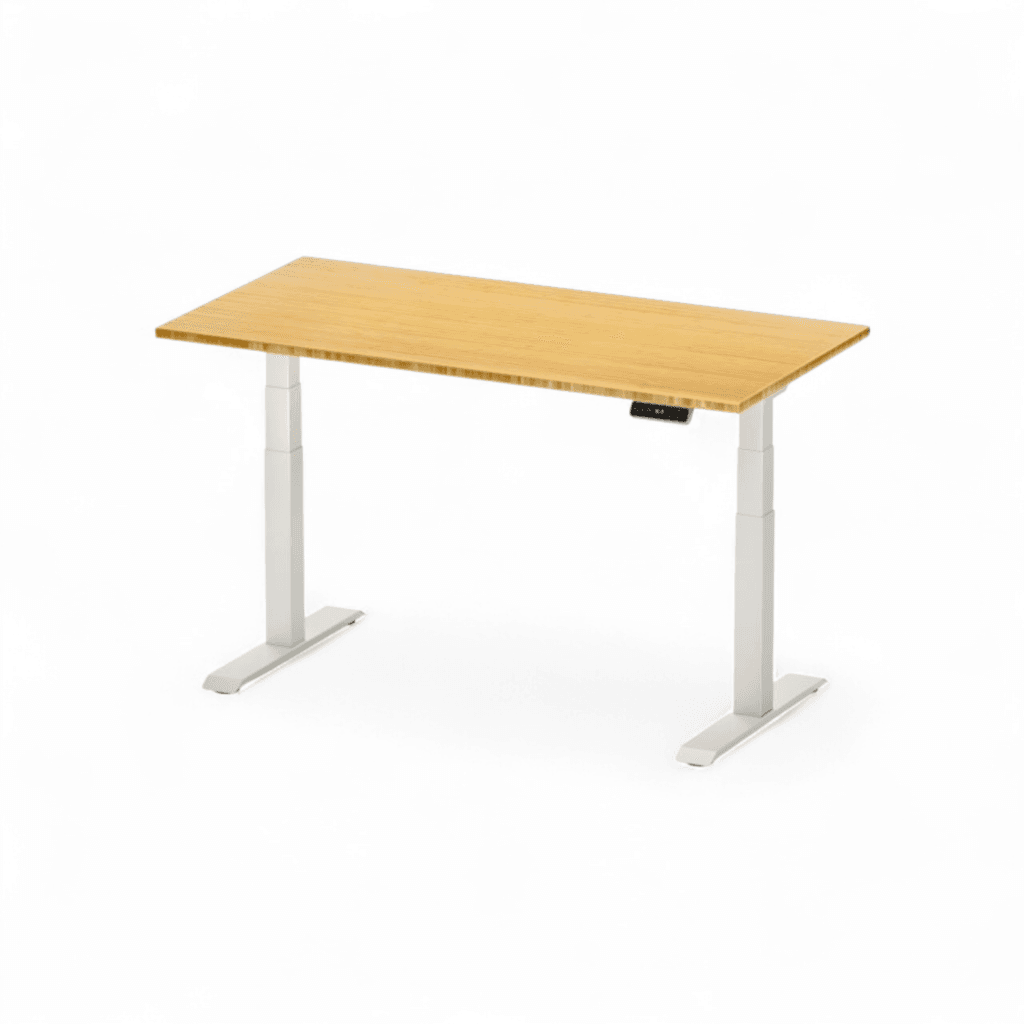
The Scenario Sitting all day is the “new smoking.” It slows down your metabolism and causes fatigue. You know you should stand more, but manual crank desks are annoying to use. Cheap electric desks have a different problem: they wobble. When you type at standing height, your monitor shakes like an earthquake, making it impossible to read text clearly.
The Deep Dive (Why It Wins) The FlexiSpot E7 series is built like a tank. In our analysis of stability tests, this frame outperformed almost every competitor in its price bracket.
- Dual-Motor System: This desk uses two separate motors—one in each leg. It can lift to 355 lbs (161 kg). This is critical. Even if you have a heavy PC tower, two 27-inch monitors, and bookshelf speakers, the E7 lifts it without slowing down.
- Stability at Height: The main complaint with standing desks is the “wobble” at max height. The E7 uses thicker steel columns that remain rigid even when fully extended.
- C-Frame Design: The legs are set back, not centered. This “C-Frame” design gives you more legroom and allows you to place a filing cabinet under the desk without banging your knees.
- Smart Keypad: The control panel has 4 memory presets. You can save your perfect sitting height and your perfect standing height.
The Reality Check (Cons)
- Heavy Packaging: The box for the frame alone weighs over 70 lbs. Do not try to carry this upstairs alone.
- Cable Management: While it comes with a basic tray, it is not enough for a power user. You will likely need to buy extra cable ties for a super clean look.
⚠️ Important Note on Availability: The “E7 Pro” is a high-demand item, and stock varies on Amazon. If you do not see the specific “Pro” model, the standard FlexiSpot E7 or E6 Max are excellent alternatives. They use the same motor technology and offer similar stability.
Our Verdict: This is the best foundation for a serious setup. The 15-year warranty on the frame proves that the manufacturer trusts the motors to last.
3. The Visuals: Best Monitor for Productivity
Product: Dell UltraSharp U2723QE (27-inch 4K) Status: Editor’s Choice | Ideal For: Work, Trading, & Creation

The Scenario: You are staring at blurry text. You have ten tabs open, and you are constantly minimizing windows to find what you need. A small, low-resolution screen makes your brain work harder to process information. This leads to eye strain and headaches by the end of the day.
The Deep Dive (Why It Wins) The Dell UltraSharp U2723QE is widely considered the “Gold Standard” for home offices in 2026. It is not just a screen; it is a productivity hub.
- IPS Black Technology: Standard IPS monitors have weak contrast, making blacks look gray. This monitor uses “IPS Black” technology, doubling the contrast ratio to 2000:1. Text looks razor-sharp, and coding in “Dark Mode” is much easier on the eyes.
- The Hub Strategy: This monitor replaces your docking station. It has a massive port selection built into the back. You can plug your mouse, keyboard, webcam, and even your Ethernet cable directly into the monitor.
- Single Cable Power: You connect just ONE USB-C cable to your laptop. This cable transmits 4K video, data for all your accessories, and provides 90W of power to charge your laptop. Your desk remains completely clean.
- KVM Switch: If you have a work laptop and a personal desktop, this feature is a lifesaver. You can view both computers on the screen at the same time, or switch your mouse and keyboard between them instantly.
The Reality Check (Cons)
- Refresh Rate (60Hz): This screen is built for work, not competitive gaming. It runs at 60Hz. If you play fast-paced shooters like Valorant or CS: GO, you will want a faster screen. For RPGs or casual gaming, it is fine.
- Price: It is more expensive than generic 4K monitors. You are paying for the color accuracy and the built-in hub.
Our Verdict: If you stare at screens for a living, your eyes deserve this upgrade. It reduces clutter and eye fatigue better than any other monitor in this class.
4. The Interface: Best Keyboard & Mouse
Product: Logitech MX Keys S + MX Master 3S Status: Industry Standard | Ideal For: Coding, Writing, & General Use

The Scenario: Your wrists hurt from typing on a high-profile mechanical keyboard, or the loud “click-clack” sound drives your family crazy during late-night work sessions. You need speed, silence, and comfort.
The Deep Dive (Why It Wins) This combo is used by top engineers and creatives worldwide for a reason.
- Smart Illumination: The keys have proximity sensors. They light up automatically as your hands approach and dim when you step away. This saves battery life and looks incredible in a dark room.
- Perfect Stroke Keys: The keys are dished (concave) to match the shape of your fingertips. This reduces typing errors because your fingers naturally find the center of each key. The travel distance is short and stable.
- The Infinite Scroll Wheel: The MX Master 3S mouse features a magnetic scroll wheel. You can scroll 1,000 lines of code or a massive Excel sheet in one second. It is completely silent.
- Multi-Computer Flow: This is the “killer feature.” You can control up to three different computers at once. You can literally copy text on your MacBook and paste it onto your Windows PC. It feels like magic.
The Reality Check (Cons)
- Mouse Size: The MX Master 3S is a large, ergonomic mouse designed for palm grippers. If you have small hands, it might feel bulky.
- Membrane Feel: If you are a die-hard fan of mechanical switches, this might feel “mushy” at first. However, for pure typing speed and silence, it is superior.
Our Verdict: Once you use the magnetic scroll wheel, you can never go back to a regular mouse. This combo removes the friction from your daily tasks.

💡 5. The Atmosphere: Best Desk Lighting
Product: BenQ ScreenBar Halo Status: Eye Saver | Ideal For: Late Night Work

The Scenario: You are working late. The room is dark, but your screen is bright. This contrast causes severe eye strain. You turn on a desk lamp, but it creates a glare on your monitor, making it hard to see.
The Deep Dive (Why It Wins) The BenQ ScreenBar Halo solves the glare problem completely.
- Zero Glare: It sits on top of your monitor and shines light down onto your desk, not at the screen. This illuminates your notes and keyboard without washing out your display.
- Auto-Dimming: It has a built-in sensor that detects the ambient light in your room and adjusts the brightness automatically to safe levels (500 lux).
- Back Light: The “Halo” version includes a light on the back that shines onto the wall behind your monitor. This “bias lighting” reduces the contrast between the dark room and the bright screen, which is proven to relax your eyes.
- Wireless Controller: It comes with a sleek wireless puck that sits on your desk. You can adjust brightness and color temperature (warm to cool) with a simple twist.
The Reality Check (Cons)
- Price: It is expensive for a light. There are cheaper knock-offs, but they often lack the patented “asymmetrical optical design” that prevents glare.
- Webcam Fit: If you have a very large webcam, it might fight for space on top of your monitor. BenQ includes an adapter, but it can be tricky to set up perfectly.
Our Verdict: This is the upgrade you didn’t know you needed. It instantly makes your workspace look professional and feels much better on your eyes.
Side-by-Side Comparison: Which Setup is Right for You?
| Product | Price Tier | Best Feature | The “Catch” (Cons) | Rating |
| Branch Ergonomic Chair | Mid-Range ($$) | 8-Point Adjustment | Armrests are firm | 4.8/5 |
| Herman Miller Aeron | Premium ($$$$) | Mesh Suspension | Very expensive | 4.9/5 |
| FlexiSpot E7 Pro | Mid-Range ($$) | 355 lbs Lift Capacity | Heavy packaging | 4.7/5 |
| Dell UltraSharp U2723QE | Mid-Range ($$) | IPS Black (Deep Contrast) | Only 60Hz (Not for FPS gaming) | 4.8/5 |
| Logitech MX Keys S | Budget-Friendly ($) | Smart Backlighting | Not mechanical | 4.7/5 |
We compared the top contenders based on long-term durability and user feedback.
How to Engineer Your Perfect Setup: A Strategic Guide
Building a modern desktop setup is an investment. It is easy to get distracted by flashy RGB lights and forget the basics. But a setup that looks good on Instagram might be a nightmare to work in.
Before you spend a single dollar, use this strategic framework to make decisions you won’t regret.
1. The Ergonomic Triangle (Prioritize Health)
Your health is the most important asset you have. If you are in pain, you cannot be productive. The “Ergonomic Triangle” ensures your body stays neutral.
- Eye Level: Your monitor’s top bezel should be at or slightly below your eye level. Why? Because looking up causes dry eyes (you blink less), and looking down causes neck strain (“Tech Neck”). If your monitor stand isn’t adjustable, invest in a VESA monitor arm.
- Elbow Angle: When typing, your elbows should be at a 90-degree angle, resting gently by your side. If your desk is too high—and standard desks are often too high for anyone under 5’10″—your shoulders will creep up toward your ears, causing tension headaches.
- The 20-20-20 Rule: No piece of gear can fix the damage of staring at a screen for 8 hours straight. Follow this rule: Every 20 minutes, look at something 20 feet away for 20 seconds. This resets your eye muscles.
2. The “One-Cable” Philosophy (Reduce Friction)
Clutter causes stress. A messy desk visually shouts at you, draining your mental energy before you even start working. The goal of a 2026 setup is the “One-Cable Solution.”
- The Hub Strategy: Look for monitors (like the Dell U2723QE) or external docking stations that handle all your connections. You should plug your mouse, keyboard, webcam, microphone, and ethernet cable into the hub—not your laptop.
- The Result: You only have ONE cable running to your laptop. This cable charges the device and transfers all data. When you finish work, you unplug one cable, put your laptop away, and your desk remains completely clean.
- Wireless Peripherals: In 2026, wireless latency will be non-existent for productivity and casual gaming. Switch to a wireless mouse and keyboard to eliminate two ugly cables instantly.
3. Lighting Dynamics (Control Your Focus)
Lighting is often ignored, but it directly controls your brain’s alertness levels.
- Color Temperature Matters:
- Cool White (5000K–6000K): Mimics daylight. Use this in the morning and afternoon to boost alertness and focus.
- Warm White (2700K–3000K): Mimics sunset. Use this in the evening to tell your brain it is time to wind down.
- The Layering Technique: Never rely on just one overhead ceiling light. It creates harsh shadows. Instead, use layers:
- Task Light: A monitor light bar to illuminate your workspace.
- Ambient Light: A floor lamp or bias lighting behind the desk to soften the room.
- Accent Light: Optional RGB strips to add personality (but keep them subtle).
4. Acoustics and Noise Control
If you work from home, noise is the enemy of professionalism.
- Microphone Quality: Do not rely on your laptop’s built-in microphone. It picks up room echo and keyboard clicks. A simple USB microphone or a headset with a boom arm makes you sound authoritative in meetings.
- Sound Dampening: If your room has hardwood floors and bare walls, your audio will bounce (echo). Add a rug to the floor, curtains to the windows, or some soft acoustic panels to the wall. This makes your audio clearer, and the room feels “cozier.”
5. Future-Proofing Your Investment
Tech moves fast. Don’t buy gear that will be obsolete in a year.
- Desk Weight Capacity: When buying a standing desk, assume you will add more gear later. A cheap desk might lift your laptop today, but will it lift a heavy ultrawide monitor and a PC tower next year? Look for a frame that supports at least 220 lbs.
- Monitor Size: It is easier to be productive on one large ultrawide monitor than on two small, mismatched monitors. If you can, buy a slightly larger screen than you think you need. You will grow into the extra space.
Red Flags (What to Avoid)
- “Gamer” Marketing: Be careful with furniture labeled “Gaming.” Often, this means “low-quality materials with a racing stripe.” Avoid desks with fake carbon fiber stickers; they peel off easily. Stick to solid wood or high-quality laminate.
- Proprietary Power Bricks: Avoid monitors or lights that require special power cables you cannot replace easily. Standard power cables (IEC) or USB-C power are safer bets for long-term use.
FAQ: Frequently Asked Questions
Q: What is the best desktop setup for a living room?
A: In a living room, space is limited. We recommend a “floating desk” or a compact standing desk (48 inches wide). Use a wireless keyboard and mouse (like the Logitech MX series) so you can easily hide them when you are done working.
Q: Do I really need a standing desk?
A: You do not need one, but it helps. Studies show that switching between sitting and standing every hour keeps energy levels up. If you are on a budget, a “standing desk converter” is a cheaper alternative.
Q: What is the best desktop setup for trading?
A: Traders need screen real estate. Instead of one huge screen, verified user reviews suggest using two 27-inch monitors or one 49-inch ultrawide (like the Samsung Odyssey G9). This allows you to keep charts open without minimizing windows.
Final Verdict: The Riajul Tech Top 3
We have analyzed the specs, read the reviews, and checked the prices. Here is our final advice for 2026.
Best Overall (The Balanced Choice)
Dell UltraSharp U2723QE + Branch Chair
This combination offers the best balance of health, productivity, and price. It is professional, clean, and built to last.
Best Budget Pick
FlexiSpot E7 Standing Desk
You get a premium dual-motor frame for the price of a standard desk. It is the best foundation for a growing setup.
Best Premium Splurge
Herman Miller Aeron
If budget is not an issue, this is the gold standard. It comes with a 12-year warranty, making it a “buy it for life” purchase.
Final Words
A great desktop setup is not about showing off expensive gear. It is about designing an environment that quietly supports your best work every day.
Over the years, I have learned that small improvements in comfort, lighting, and ergonomics compound into massive gains in focus and energy. Start with what matters most: your chair, your posture, and your workspace clarity, and build from there.
If this guide helped you make a better decision, I consider this article a success.
— Khandokar Riajul Islam
Founder, Riajul Tech